Remove Background from an Image
Create a foreground cutout from your uploaded photo. Sign-in and credits required; inspect the result before use.
Choose Image
Drag and drop or click to upload
JPG, PNG, WEBP • Max 10MB
or try an example
Photoroom background remover or Plykit: what should you compare?
Photoroom’s official background-remover page describes removing a background and choosing a transparent, white or colored replacement. This Plykit page provides a signed-in, credit-based cutout workflow with background choices and downloads. These are descriptive workflow facts, not a tested claim that one service produces better edges or costs less.
Compare the actual exported file
Use the same permitted source photo. Inspect transparent edges, thin parts, packaging text and output dimensions. We have not run a controlled Photoroom-versus-Plykit quality benchmark.
Explore this workflowKeep background editing separate from redrawing
Generating a new scene can change the product itself. Our separate model sample test illustrates this risk; it does not measure this cutout tool.
Explore this workflowCheck the current credit quote
This processing endpoint currently uses one credit per operation. Sign in and check available credits before uploading; plan terms are shown on the pricing page.
Explore this workflowSource checked October 2, 2026: Photoroom’s official background-remover description. Check each provider’s current terms before uploading.

Remove backgrounds in seconds, not hours
Say goodbye to tedious manual editing. Our AI-powered background remover automatically detects your subject and removes the background in just a few seconds. What used to take hours in Photoshop now happens with a single click. Whether you're preparing product photos for your online store or creating content for social media, get professional results instantly without any design skills.
Remove background free
Inspect edges on complex subjects
Hair, fur, jewelry, reflections and semi-transparent objects can be difficult to separate. Compare the cutout against the source at full size and correct visible artifacts before publishing.
Try it now
Transparent, white, or any color you need
Get exactly the output you need. Download with a transparent background for maximum flexibility, or choose a solid color that matches your brand or project requirements.
- E-commerce listings requiring white backgrounds
- Social media posts with branded colors
- Design projects needing transparent PNGs
- Professional headshots with clean backdrops
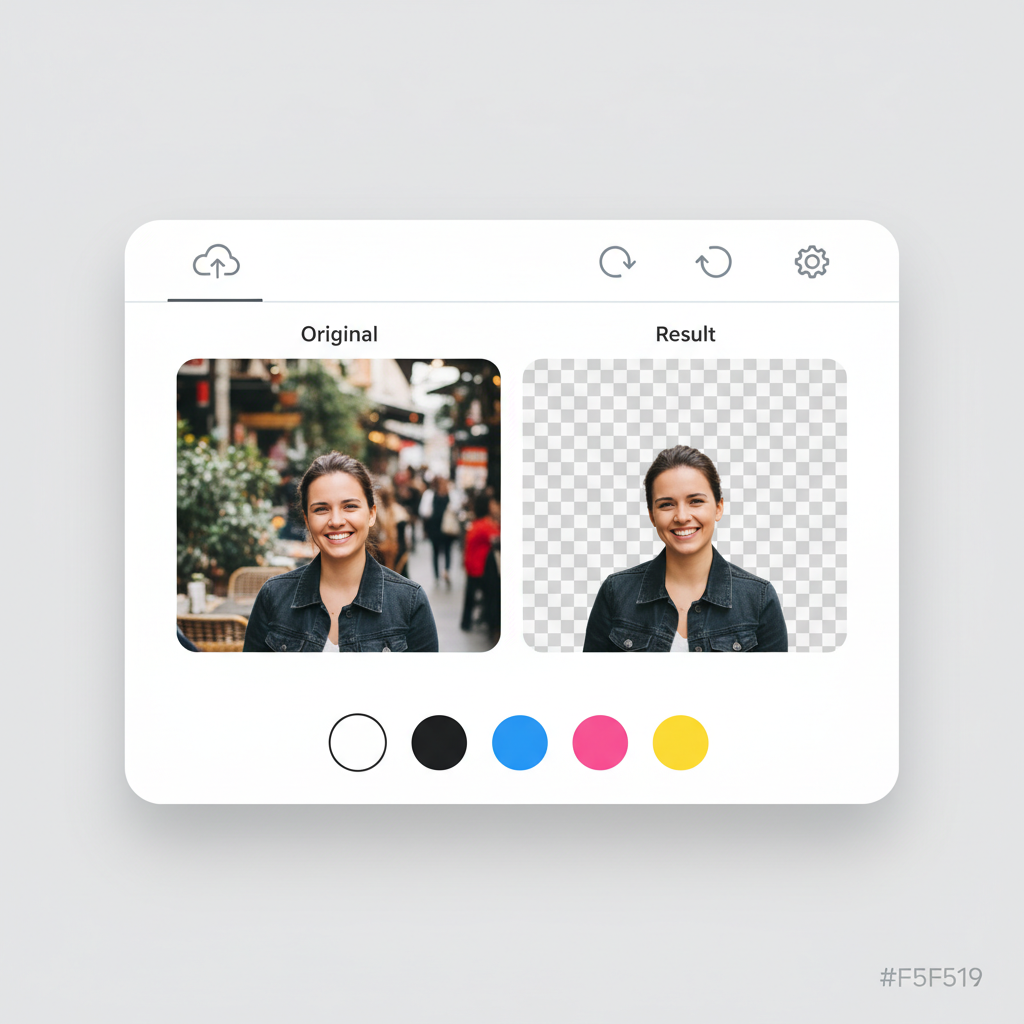
Check your balance before processing
Sign in and check the current quote. Background removal currently uses one credit per operation. Eligible starter credits are subject to the current account terms.
Review upscale optionsUsed by ecommerce sellers, designers and creators
Our background remover is used by e-commerce sellers, designers, and content creators
Edge quality varies by photo; check results before use.
Average processing speed
Support for large images
JPG, PNG, WEBP supported
How to Remove Background in 3 Steps
Remove backgrounds from any image in seconds
Upload Image
Upload your photo or drag and drop. Supports JPG, PNG, and WEBP up to 10MB.
AI Processing
Our AI automatically detects and removes the background in seconds.
Download Result
Choose your background color and download in PNG or JPG format.
Supported Formats
Maximum file size: 10MB
How Our AI Background Removal Technology Works
The tool requests foreground segmentation and returns a processed image. This separates the subject from its background; inspect the returned pixels rather than assuming perfect separation.
Step 1: Upload Image
Our system accepts JPG, PNG, and WebP images up to 10MB. When you upload, the image is sent securely to our processing servers. We automatically detect the image dimensions and color space to optimize processing. For best results, use well-lit images where the subject is clearly distinguishable from the background.
Step 2: AI Processing
Wait for processing to finish, then compare thin edges, transparency and reflections against the source.
Step 3: Download Result
Once the background is removed, you can choose a transparent background (PNG), or apply white, black, or any custom color. Download your result in PNG format for transparency support, or JPG for smaller file sizes. The original image quality is fully preserved in the foreground subject.
Background Removal Use Cases
From e-commerce to social media, our AI background remover works for all your projects

E-commerce Products
Create clean white backgrounds for marketplaces like Amazon, eBay, and Shopify. Meet marketplace requirements and increase conversion rates.

Portraits & Headshots
Professional profile photos and ID photos in seconds. Perfect for LinkedIn, resumes, and business cards.
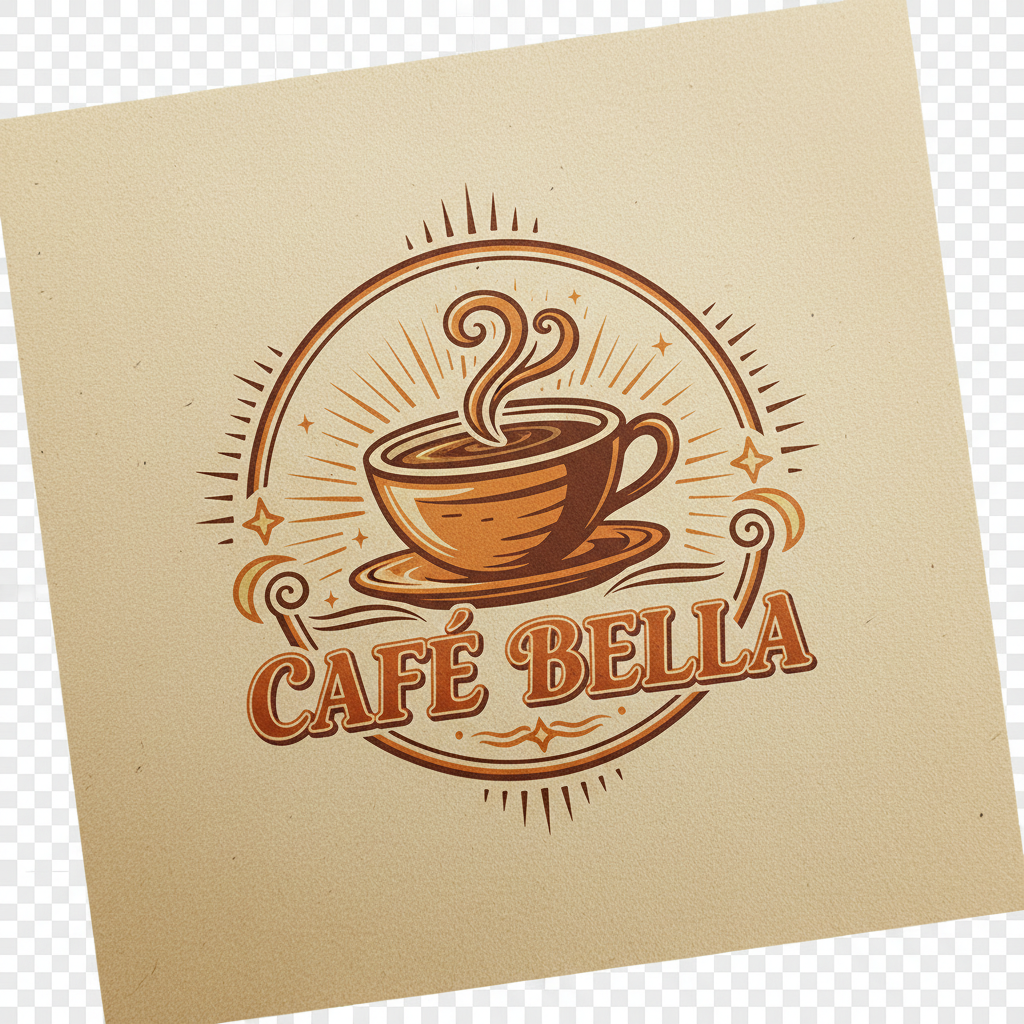
Logos & Graphics
Create transparent logos for any project. Perfect for branding, marketing materials, and web design.

Social Media Content
Eye-catching posts with custom backgrounds for Instagram, TikTok, Facebook, and more.

Pets & Animals
Precise fur and hair detection for perfect cuts. Create adorable pet portraits and memories.
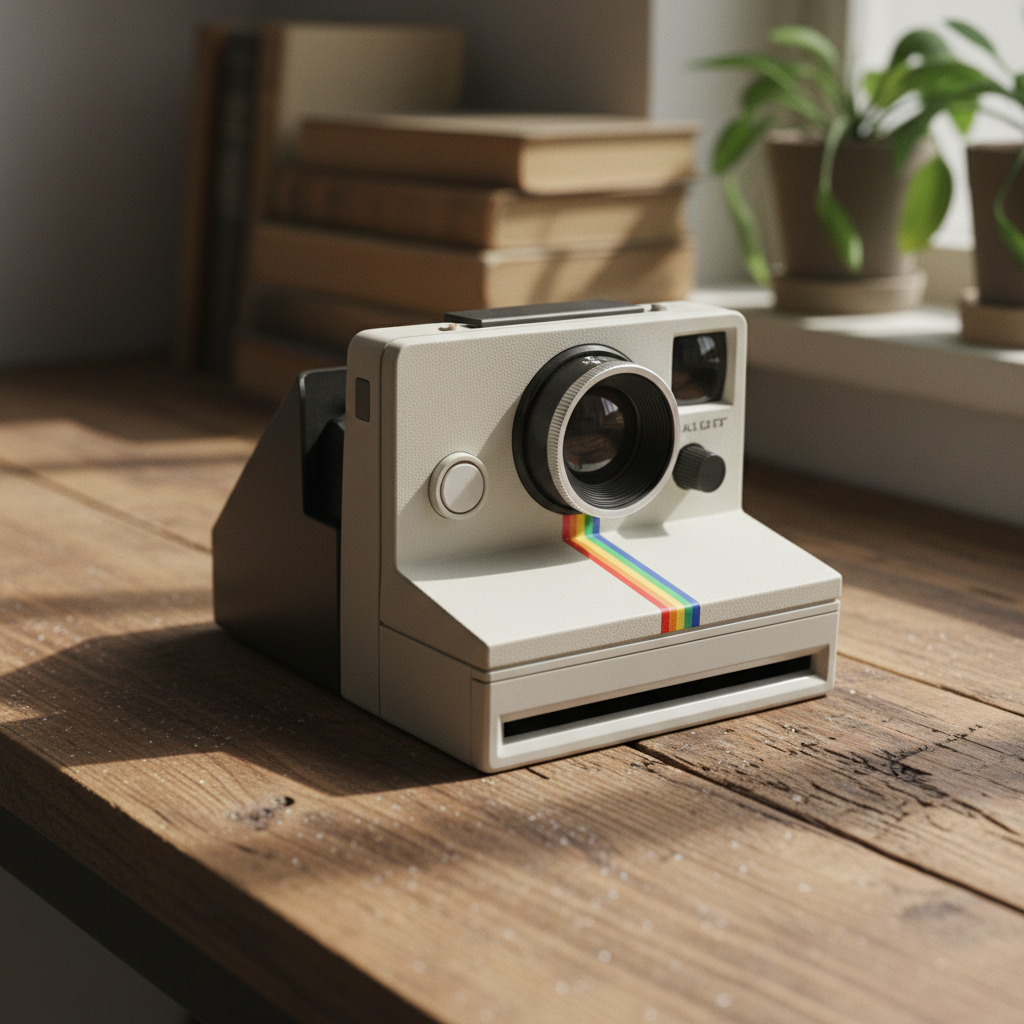
Objects & Items
Isolate any object for creative projects, presentations, or online listings.
Marketing Materials
Create professional flyers, banners, and ad creatives with clean cutouts. Place products and people on branded backgrounds for consistent marketing campaigns.
Real Estate Listings
Remove distracting backgrounds from property interior shots, furniture images, and staging photos. Create clean, professional real estate marketing materials.
Education & Presentations
Prepare clean images for slides, worksheets, and educational materials. Remove backgrounds from diagrams, photos, and illustrations for cleaner presentations.
Print-on-Demand Products
Isolate designs for t-shirts, mugs, phone cases, and other merchandise. Get transparent PNGs ready for print-on-demand platforms like Printful and Redbubble.
How Plykit Compares to Other Background Removers
See how our AI stacks up against popular background removal tools
There are many background removal tools available, each with different strengths. Here is how Plykit Background Remover compares to the most popular alternatives.
Plykit vs Remove.bg
If comparing remove.bg with this tool, check the current terms, export size, edge quality and downloaded file using the same permitted source. We have not established a controlled quality or cost ranking.
Plykit vs Canva Background Remover
If comparing Canva with this tool, check the current account requirements and export workflow directly with Canva. Historical plan prices are not a reliable basis for choosing a tool.
Plykit vs PhotoRoom
Compare the actual cutout, export and account requirements. See the official Photoroom source linked above; this page does not establish a quality winner.
Plykit Background Remover is designed for users who want professional-quality background removal without the commitment of a monthly subscription. Our credit-based pricing means you only pay for what you use, and every download is full resolution.
Tips & Best Practices for Background Removal
Get the best results from our AI background remover with these expert tips
Use Good Lighting
Well-lit images produce the cleanest results. Natural daylight or studio lighting helps the AI distinguish between the subject and background more accurately. Avoid heavy shadows that blend the subject with the background.
Ensure Subject-Background Contrast
The AI works best when there is clear visual contrast between your subject and the background. A dark subject on a dark background will be harder to separate than a dark subject on a light background.
Upload High-Resolution Images
Higher resolution images give the AI more pixel data to work with, especially around fine details like hair and edges. Start with the highest quality image available for the best output.
Simpler Backgrounds Work Best
While our AI handles complex backgrounds well, simpler, less cluttered backgrounds produce the cleanest results. If possible, photograph subjects against a plain or relatively uniform background.
Choose PNG for Transparency
Always download as PNG if you need a transparent background. JPG does not support transparency, so the transparent areas will appear white in JPG downloads. Use PNG when you plan to place the subject on a different background later.
Center Your Product in the Frame
For e-commerce product photos, center the product in the image and leave some padding around the edges. This gives the AI clear boundaries and makes the final image look more professional on marketplace listings.
Set Up an Efficient Workflow
For multiple images, process and inspect one at a time. Download each result and compare it with the source; processing speed varies.
Zoom In to Check Edges
After removal, zoom into the edges of your subject to verify the AI captured fine details correctly. Pay special attention to areas like hair, transparent objects, and areas where the subject color is similar to the background.
Remove backgrounds, then reimagine them. Place your product in trending lifestyle scenes with AI.
Explore More AI Tools
Discover our complete suite of AI photo editing tools
Background Remover FAQ
Everything you need to know about removing backgrounds from images
Ready to remove backgrounds?
Sign in, check available credits, and start with one representative image.
No credit card required • eligible starter credits • Upgrade anytime
Part of the Plykit suite — free AI image tools powered by Google Gemini.